Guide
How to submit a forwarding request
This guide walks through the forwarding request form in screen order, from start to submission. Warehouses, amounts and names in the screenshots are examples and may look slightly different for your warehouse.
Did the warehouse tell you about a parcel with no request?
Submit a request following the steps below, and enter the local tracking number exactly as it appears on the parcel at the warehouse. When the numbers match, the parcel is linked to your request automatically and moves on to the next step.
View unclaimed parcels →1Open the form · choose the route and shipping method
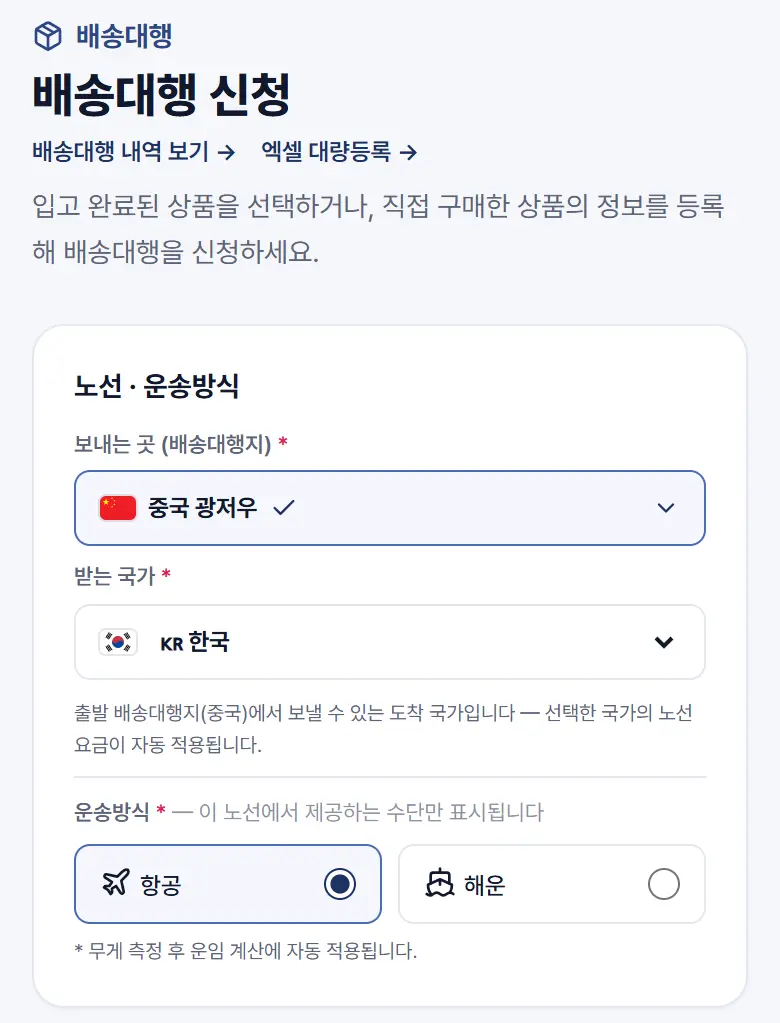
- After logging in, open Forwarding in the menu and tap [Forwarding request].
- Choose the origin (forwarding warehouse) and the destination country. Pick the warehouse the seller shipped to.
- Choose a shipping method (air, sea, etc.). Only the methods available on this route are shown.
2Add items — paste your order history
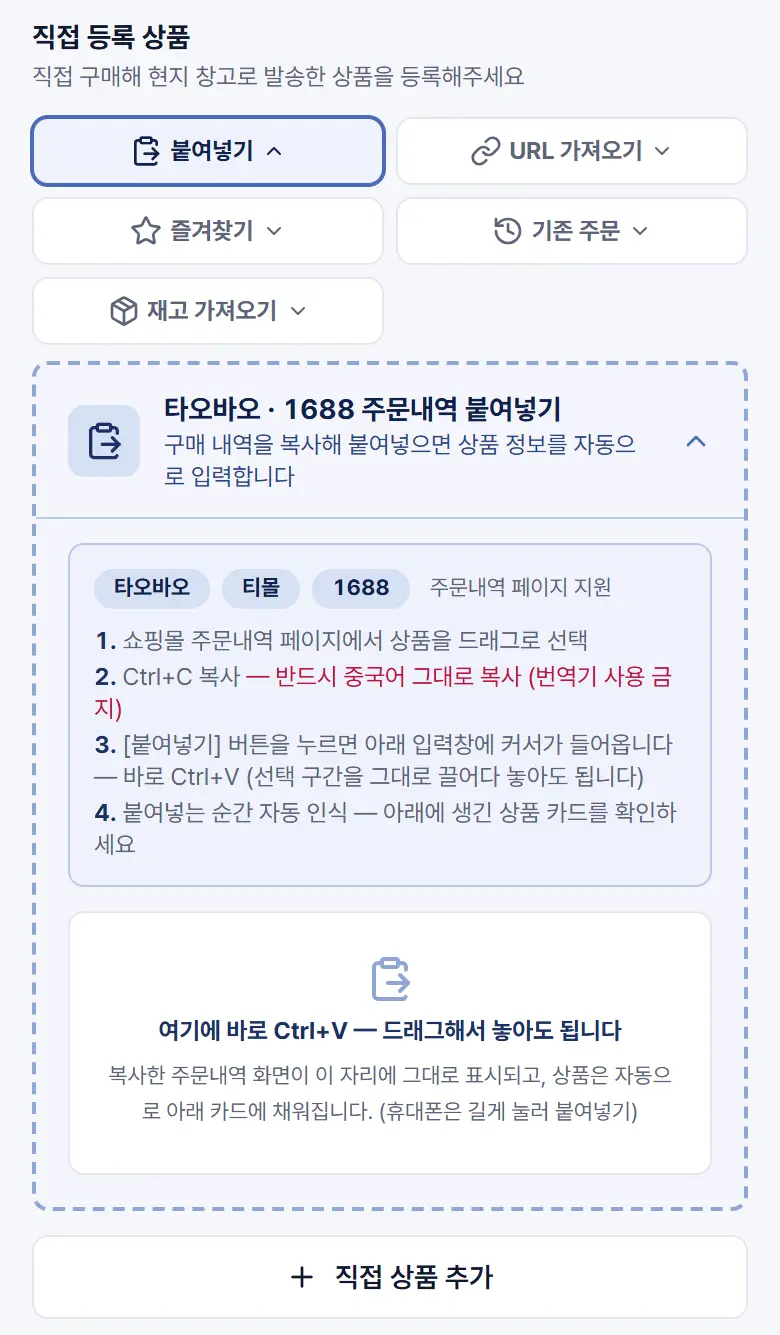
- Tap [Paste], then copy and paste the order history page from the online store. The item details are filled in automatically.
- Do not turn on a translator — copy the page exactly as it is.
- If you only have the product link, use [Import URL]. To type each item yourself, tap [Add item manually].
3Check the item details
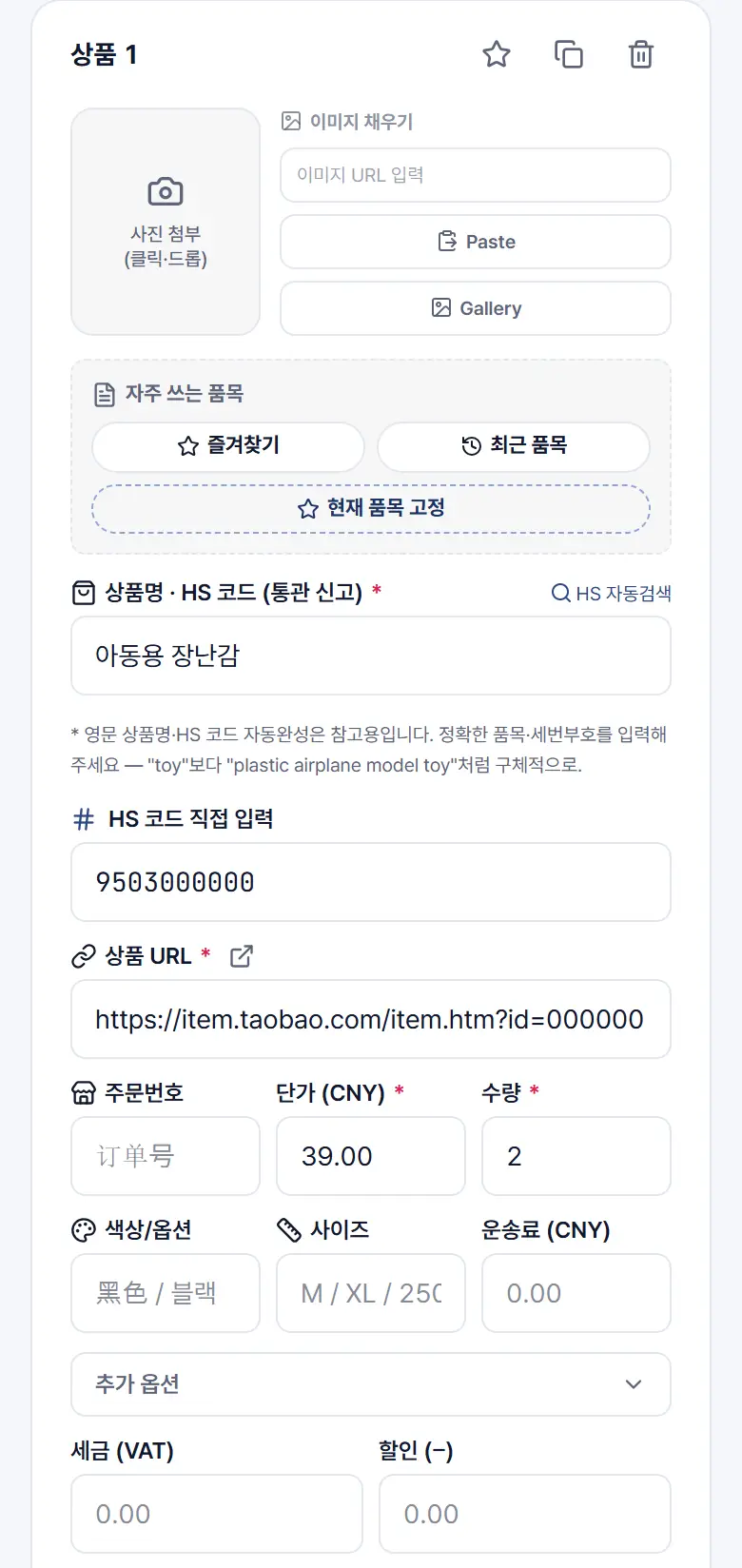
- Fields marked with an asterisk (*) are required — item name and HS code, product URL, unit price and quantity.
- When you enter the item name, the HS code is searched automatically. If you don't know it, tap [Request item registration].
- Adding a product photo lets you choose basic inspection, where the warehouse compares the arrived item with your photo.
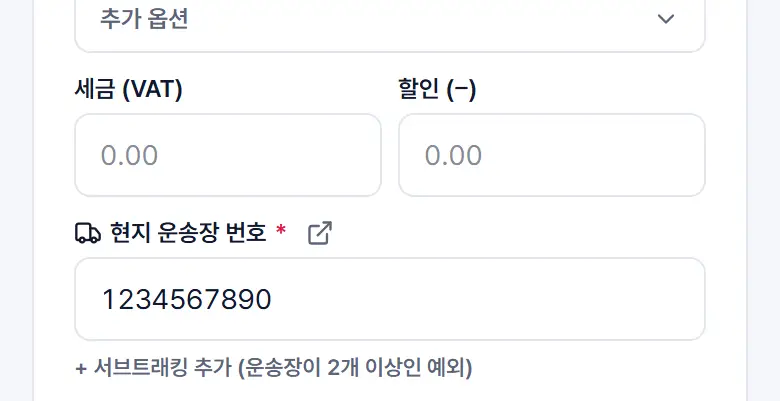
4Enter the local tracking number (most important)
- In the [Local tracking number] field at the bottom of the item card, enter the tracking number of the local courier the seller used.
- Enter the whole number exactly as shown on the courier's tracking page, including any letters. A partial number will not be linked.
- If a parcel with the same number has already arrived at the warehouse, it is linked to this request automatically.
- If you don't have a tracking number yet, save a draft and submit once you receive it.
If the tracking number is different or missing, the parcel at the warehouse is not linked and processing is delayed until our staff check it manually.
5Choose additional services
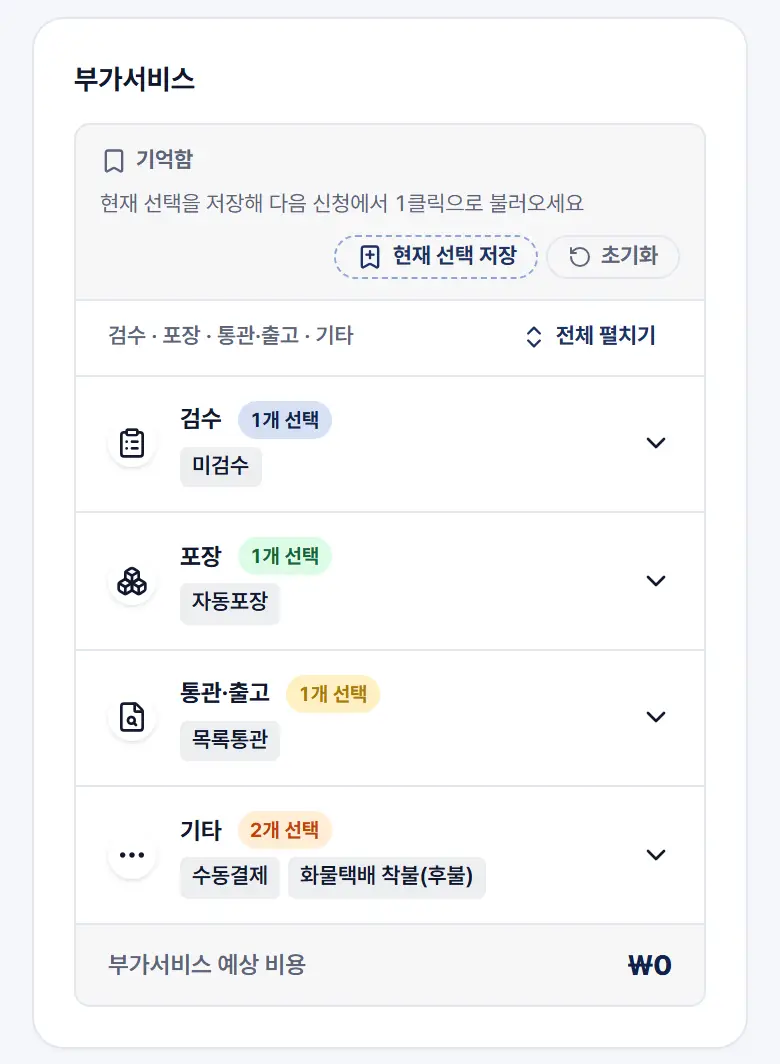
- Choose the additional services you need from inspection, packing, customs and other.
- Some items are selected by default, so open each group to check. The estimated cost is shown at the bottom.
- Tap [Save current selection] to load the same choices on your next request in one tap.
6Enter the recipient and customs details
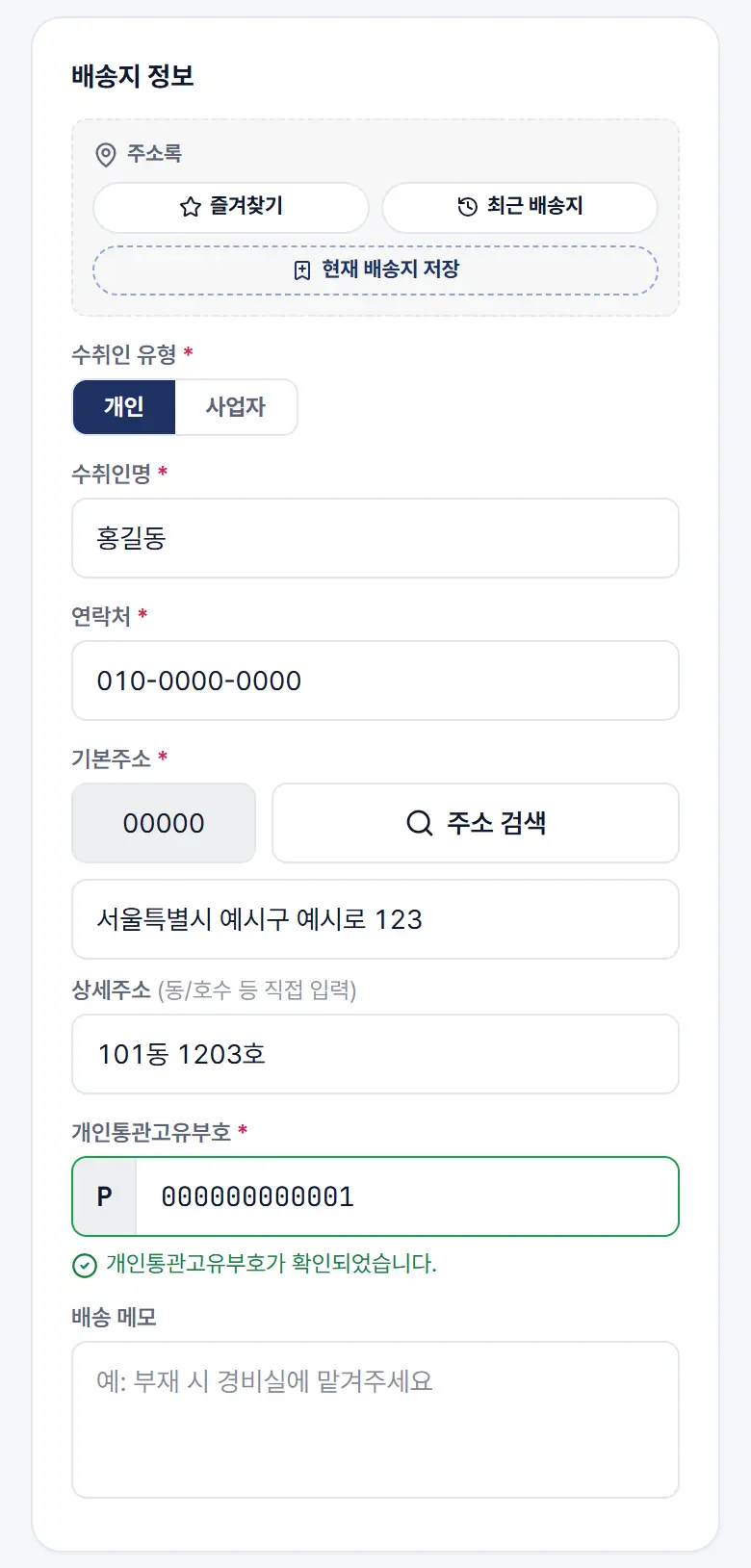
- Enter the recipient name and phone number, choose the address with [Search address], then add the detailed address.
- For delivery to Korea, enter the Personal Customs Clearance Code. The recipient name and phone number must match the details registered with Korea Customs.
- To clear customs as a business, choose [Business] as the recipient type. For other countries, a field for that country's customs ID appears.
7Submit the request
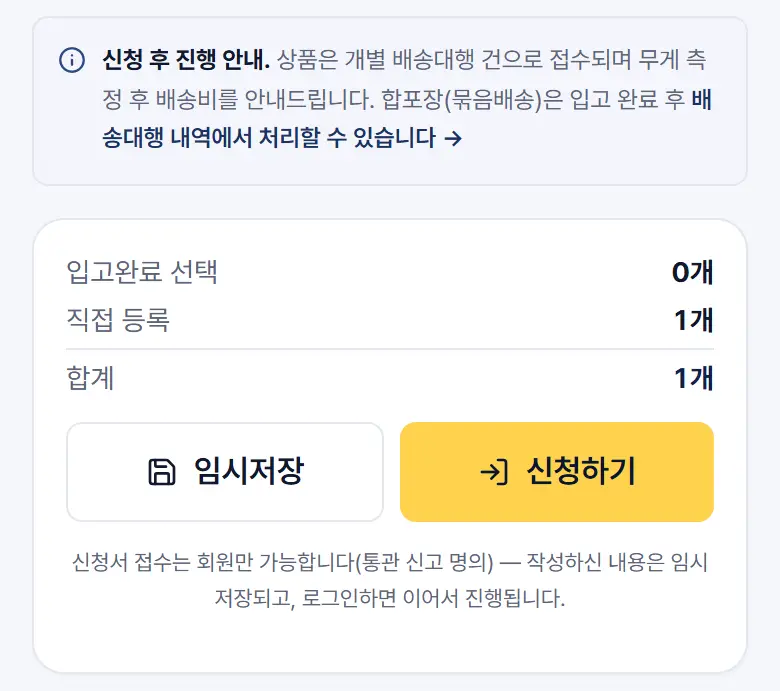
- Check the item count and tap [Submit]. If something is missing, a notice appears below the button.
- Your request number and order number (#) are issued the moment you submit.
- If you haven't finished, tap [Save draft] and continue later.
8Check your submitted request
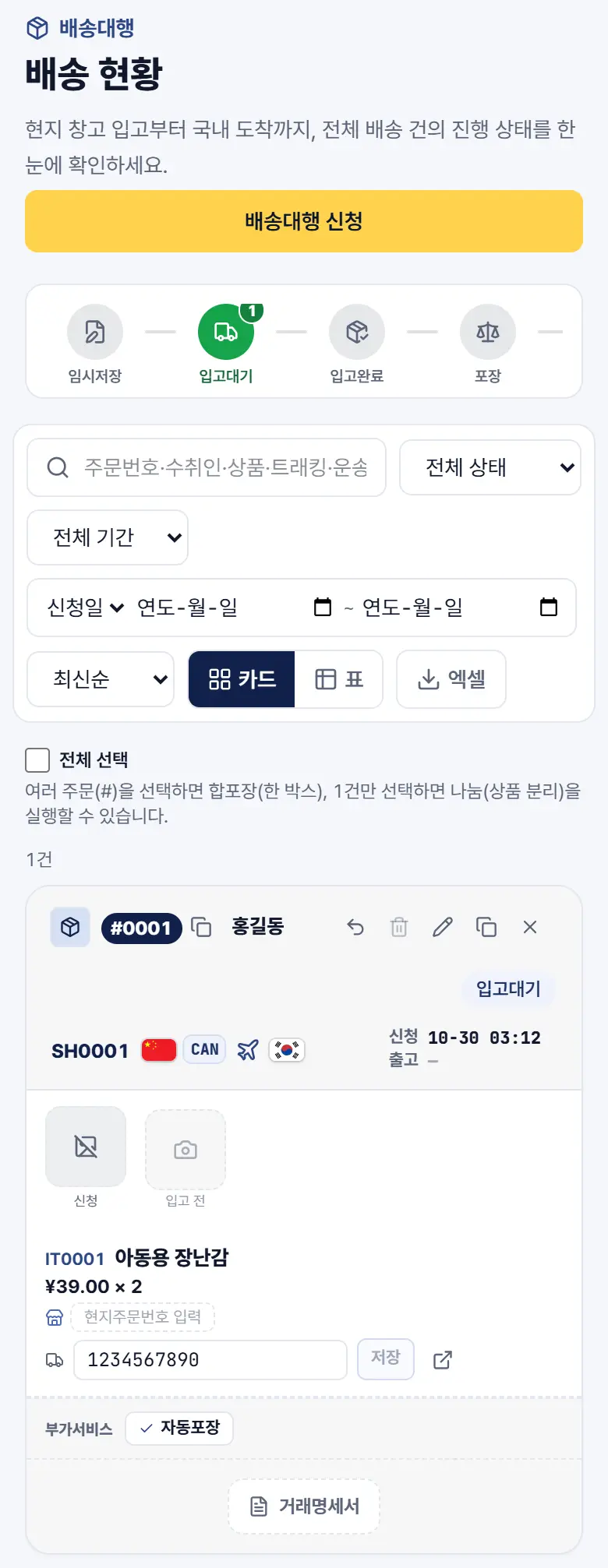
- Your new request appears in Forwarding history with the status Awaiting arrival.
- Check once more on the card that the tracking number is correct.
- When the parcel arrives at the warehouse, the status changes to Arrived, and you can follow the next steps on the same screen.